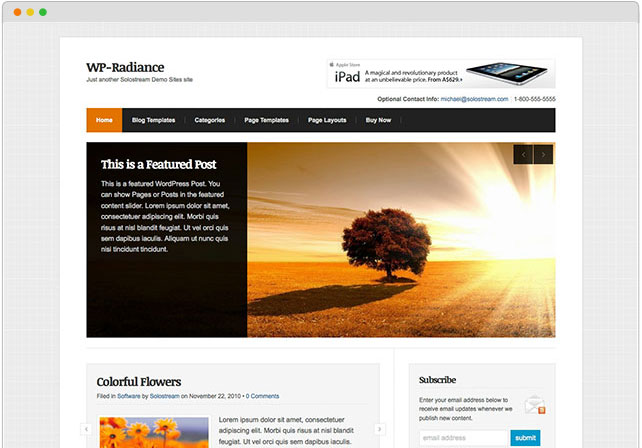
WP-DaVinci 2.0 Premium WordPress Theme Now Available
We’ve made several upgrades to WP-DaVinci, and I’d like to take a few minutes and talk about the major ones. If you’re using WP-DaVinci already, you’ll want to read over this to see what you’ll need to do to upgrade. Don’t worry though. It should be a relatively easy upgrade.
If you’d like, you can check out the demo site first here.
1. Overhauled Image Handling
For several reasons, we eliminated the Timthumb script and replaced it with native WordPress functionality. We’re still using the Get the Image (GTI) plugin, but we’ve built it into the theme to make install and set-up easier for our users.
You may wonder why we still use GTI plugin with the theme, and the simple reason is that many of our existing customers don’t use the built-in WordPress Featured Image function. For those folks, the GTI plugin will extract an image from the post (or page) and use it as the post thumbnail or featured image.
What To Do Upon Upgrade or Initial Install
After you install and activate the theme, you’ll be taken directly to the Theme Settings page. There, you’ll see a link to regenerate your post thumbnails. You’ll want to click that link and on the following page, click the Regenerate All Thumbnails button. It should only take a minute or so, depending on how many images you have on your site, and it will ensure your post images are sized correctly for the theme.
If you’re not doing so already, you’ll want to use the WordPress Featured Image function going forward. This will ensure that all your post thumbnails and Featured Article images are a consistent size.
The “Featured Image” metabox should show up on the Edit Post and Edit Page screens. If it isn’t, make sure “Featured Image” is enabled in the screen options on the top right corner of your WordPress dashboard.
2. Mobile-Friendly, Responsive Design
Like most of our recent themes, WP-DaVinci is built to respond to the browser size of your site visitor. That way, your site will look great no matter what sort of device it’s viewed on.
What To Do Upon Upgrade or Initial Install
Nothing much for you to do here. The theme should handle all the heavy lifting for you. That said, if you’ve made customizations to an earlier version of WP-DaVinci, you’ll want to copy those over to the custom.css file in DaVinci 2.0. If you’ve made style changes via the Theme Settings page, those should transfer automatically.
3. Separated Subscribe Box Widget and Social Media Icons Widget
This is a relatively small change, but we’ve moved the social media icons out of the Subscribe Box widget and given them their own Social Media Icons widget.
What To Do Upon Upgrade or Initial Install
Just know these are now two separate widgets, so you’ll want to be sure to add the Social Media Icons widget, in addition to the Subscribe Box widget.
4. Redesigned the Default Style
We created a new default style for the theme. It’s the one you are viewing now. The previous default style is still available via the Theme Settings page under the Basic Site Settings. It’s style4.css under the Alternate Stylesheet field.
What To Do Upon Upgrade or Initial Install
If you liked the previous default style and would like to keep it as the design for your site, simply go to the Theme Settings page and select it under Basic Site setting.
5. Redesigned the Header/Logo Area
Because of the responsive design elements, we had reconfigure the header/logo area. If you’re currently using a full-width header image, along with a 468×60 banner ad in the header, this could prove to be a problem for you. If this is the case, please post the issue on the support forum, and we’ll do as much as we can to help you find a solution.
6. Redesigned the Featured Videos Slider
Again, because of the responsive design elements, we had to rework the featured video slider. If you’re attached to the previous version of the Featured Videos slider, let us know in the forum, and we’ll see what we can do to help you.
7. Added Some New Page Templates
We added a few new Page templates, which you can see on the demo site.
- All Authors Page Template – This will be useful for you if you have multiple authors writing on your site.
- Portfolio Page Template
- YouTube Videos Page
That about covers it. If you have any questions or comments, feel free to post a comment below. If you have any support-related questions, please login to the Solostream Member’s area and click the Support Forum link.
If Upgrading, Be Sure to Update Your Custom Menus
If you are upgrading from a previous version of WP-DaVinci, you will likely have to visit the Menus panel in your WP dashboard and re-assign your custom menus.
About the Author (Author Profile)
Hi I’m Michael, a business coach and a creative entrepreneur. I inspire and empower people to make a difference in the world while they create an amazing life for themselves and those they love.


I’m using 2.0.4 but having problems with the Featured Slider (narrow) on mobile devices. For instance iPhone 4, Samsung Galaxy SIII and HTC Desire…anybody else having that problem? Just getting the loading wheel…
Hi Dan. I’m not seeing any problems with dansketegneserieskabere.dk on my Android device. Looks really good actually.
Nor have we had anyone else report issues.
Does WP-DaVinci theme supports child theme?
Yes, it does.
Do you think using this theme without timthumb vs previous themes, a site load time will speed up? I noticed timthumb was dragging loading a bit and I’d like your input before I switch from WP Clear.
Hi Artur. Based on my testing, sites do run faster without timthumb.
Hi guys – I never upgraded from Davinci last time (so I’m still using version 1.0.1). Can I just install this latest version to upgrade?
Yes, just install the new version and activate it from the dashboard.
Love the new options panel & the built in regen thumbnails too – thanks for updating this theme & looking forward to more
Thanks so much Chelle.
Hi – I have an existing WP site using neoclassical, and have not switched to Da-vinci yet, I see you have updated the theme, which is great. Given that I am not upgrading an existing Da-vini themed WP site, do I have to do anything different ?
Also, I see from above that the header/logo area has been changed – I did want to use a full width header image – is there anything I need to know ?
Many thanks – Ian
Hi Ian. No, you don’t have to do anything different than what’s listed above.
Regarding the full-width header, it’s only an problem if you plan to use the 468×60 banner ad in the header.
Hi Michael,
If we’re upgrading, do we deactivate the GTI plugin we had installed, since it’s part of the theme now?
Cheers,
Laurie
Hi Laurie. You can deactivate it if you want, but it’s not required. The theme will use the built-in version only if you don’t have it already installed.
Great news guys, can I check if I upgrade will it overwrite my banner files at all?
Thanks Adam. I thought of you often as I was re-doing the theme’s image handling
No, it shouldn’t overwrite your banner files.
THANK YOU for the “All Authors Page Template” – I had asked for that feature awhile ago and I’m very glad that you decided to include that. And separating the subscribe box and social icons will be very helpful. Now I just have to figure out how to set up a test site with all my configuration data, to see if I can upgrade without problems…
Thanks Charlie. Glad we finally got around to implementing your suggestion.